
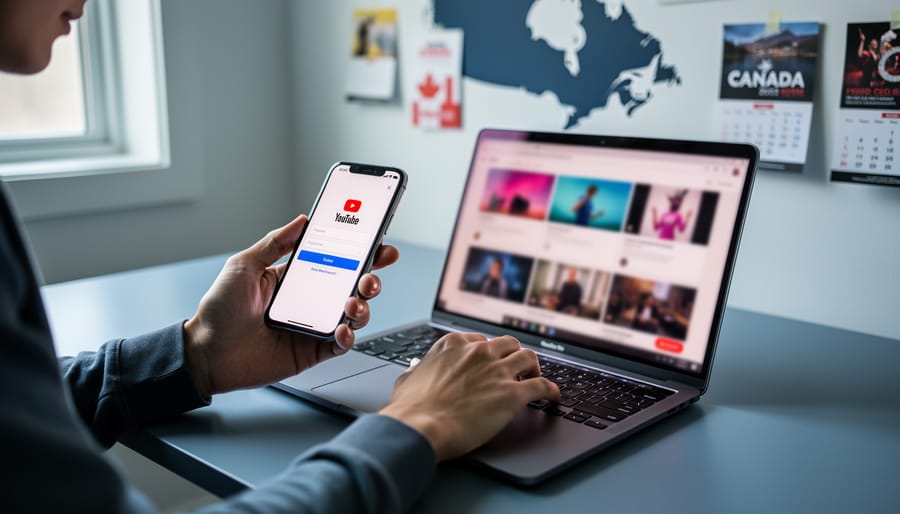
Creating a YouTube account takes about five minutes and requires just an email address and a few basic details. The process is straightforward: sign up with a Google account (or create one on the spot), verify your identity, and customize your channel name and settings. Once you’re in, you gain instant access to a powerful tool for following Canadian event organizers, festival channels, and concert promoters who announce lineups, ticket drops, and last-minute schedule changes through video updates.
For event enthusiasts across Canada, a YouTube account does more than let you watch videos. You’ll receive notifications when your favorite venues upload new content, you can save playlists of upcoming festivals you’re tracking, and you can engage with the events community through comments and live streams. Many organizers now premiere exclusive behind-the-scenes footage or host live Q&As that require an account to participate.
Whether you’re planning to follow Toronto music festivals, Vancouver cultural celebrations, or Montreal food events, having an active YouTube presence keeps you connected to the pulse of Canada’s event scene. The platform has become essential for discovering hidden gem events before they sell out and staying updated on weather changes, venue modifications, or special guest announcements that might not hit other social channels first.
What You Need Before You Start
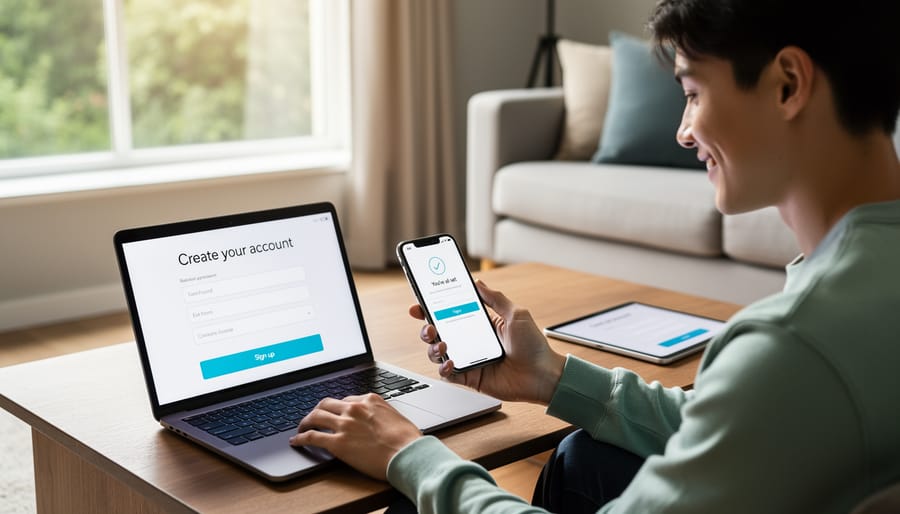
Creating a YouTube account takes just minutes, and you probably already have everything you need sitting within arm’s reach. Before you start the signup process, gather these essentials to make your account creation smooth and hassle-free.
Here’s what you’ll need to have ready:
- A valid email address (Gmail works seamlessly, but Yahoo, Outlook, or any other provider is fine)
- An internet-connected device like a computer, smartphone, or tablet
- A phone number for account verification
- A profile photo (optional, but helps you connect with Canadian event communities)
Your email address serves as your account identifier and where YouTube sends important notifications about new videos from event organizers you follow. While Google owns YouTube, you don’t need a Gmail account. Any active email you check regularly works perfectly.
The phone number requirement catches some people off guard, but it’s a security measure YouTube uses to prevent spam accounts and protect the platform. You’ll receive a verification code via text message during setup. This one-time verification helps ensure you’re a real person interested in connecting with Canada’s vibrant events scene.
Your device doesn’t need to be fancy or new. YouTube’s signup process works on everything from the latest smartphone to an older laptop. As long as you can access the internet and navigate to or download the YouTube app, you’re good to go. The entire process takes about five minutes once you have these basics assembled.
Important Things to Know Before Creating Your Account

Before you dive into account creation, take a moment to review these important considerations that will help you set up a secure, compliant account and avoid common headaches down the road.
YouTube requires all users to be 13 or older to create their own account. If you’re younger, you’ll need parental consent or a supervised account through Google Family Link. Providing false age information violates YouTube’s terms of service and can result in account suspension.
Your account will automatically default to public activity settings, meaning your subscriptions and liked videos may be visible to others. If you plan to follow local event organizers or niche Canadian festivals, consider adjusting your privacy settings from the start to control what appears on your profile. You can always make your subscriptions private later, but it’s easier to set this up correctly from the beginning.
Choose your username carefully. While you can change your display name later, your Google account handle is much harder to modify once set. Pick something you won’t mind seeing for years, especially if you plan to comment on event videos or interact with the Canadian events community. Generic names work fine if you prefer to stay low-key.
Read through the key points of YouTube’s Terms of Service during signup rather than blindly clicking “I agree.” Understanding basic rules about copyright, community guidelines, and content policies will prevent accidental violations when you start engaging with event videos and channels. Stop and review your choices if anything seems unclear or if prompted to grant permissions you don’t understand.
Step-by-Step: Creating Your YouTube Account
Starting from YouTube’s Homepage
Open your web browser and go to . You’ll land on the homepage with videos already playing. Look toward the top-right corner of the screen, that’s where you’ll find a blue “Sign in” button. Click it.
A new page appears with a Google sign-in box. Don’t enter anything yet. Below the main sign-in fields, you’ll see a small link that says “Create account.” Click that link, and a dropdown menu opens with two options: “For my personal use” or “To manage my business.” For following Canadian events and organizers, choose “For my personal use.”
If you’re using the YouTube mobile app instead, tap your profile icon in the top-right corner. A menu slides out with “Sign in” near the top. Tap it, then look for “Create account” at the bottom of the sign-in screen. The same two options appear, select the personal option.
Both paths lead you to the same account creation form where you’ll enter your details next.
Filling Out Your Account Information
Start by entering your full name in the “First name” and “Last name” fields. YouTube displays this publicly by default, so consider using a variation if you prefer privacy, many event enthusiasts use their first name plus their city (like “Sarah Vancouver”) to connect with local communities.
Next, you’ll choose your email address. If you’re creating a Google account simultaneously, pick a Gmail username that’s memorable and relevant. Try combining your interests with your location: “torontoevents2026” or “festivalfan.mtl” work well. If these are taken, YouTube suggests alternatives, review them before accepting. Already have a Gmail or non-Gmail address? Simply enter it instead.
Creating a strong password matters more than most people think. Use at least 12 characters mixing uppercase, lowercase, numbers, and symbols. Avoid obvious choices like “Password123” or your birthdate. A trick: string together three random words plus numbers (“BlueTent47Music!”). Write it down somewhere safe if you’re worried about forgetting.
The birthdate field determines account features and content access. Enter your real date, YouTube uses this to comply with age requirements and doesn’t display it publicly. If you’re under 18, certain features get restricted, but you can still follow event channels and save videos.
Double-check everything before clicking “Next.” Typos in your email mean you won’t receive verification codes, and you can’t change your birthdate later without contacting support.
Verifying Your Phone Number
Phone verification is YouTube’s security checkpoint to confirm you’re a real person and protect your account from unauthorized access. When prompted, you’ll see a screen asking for your mobile number. Select your country code (Canada is +1), enter your 10-digit phone number without dashes or spaces, and choose whether to receive the verification code via text message or voice call. Text is usually faster.
Within a few seconds, you should receive a 6-digit code. Enter it exactly as shown and click “Verify.” If the code doesn’t arrive within two minutes, check that you entered the correct number and that your phone has signal. You can request a new code, but wait at least 60 seconds before trying again to avoid triggering spam filters.
If text verification fails repeatedly, switch to the voice call option. The automated system will speak the code clearly twice. Some users with prepaid plans or VoIP numbers may experience delays, standard carrier numbers work most reliably.
You cannot skip phone verification entirely, as YouTube requires it to prevent automated account creation and spam. Each phone number can typically verify up to three accounts, so if you’ve previously used your number for other Google services, you may need to use a different number or contact Google support.
Customizing Your Profile
Now that your account exists, take a moment to personalize it, though you can skip this step and come back later if you prefer. Click your profile icon in the top-right corner and select “Your channel” to add a profile photo. Choose an image that represents you or your event interests; many Canadian event enthusiasts use photos from festivals they’ve attended or landmarks from their city. This helps local organizers and fellow event-goers recognize you when you comment or participate in live chats.
Under “Customize channel,” you’ll find a description field. Keep it brief, something like “Toronto music lover” or “Vancouver festival explorer” works perfectly. Mentioning your Canadian city helps you connect with regional event communities and signals to local organizers that you’re a potential attendee. You can also adjust privacy settings here: decide whether your subscriptions and liked videos are public or private, depending on how you want to engage with Canada’s events scene.
Confirming Your Account Works and What to Do Next
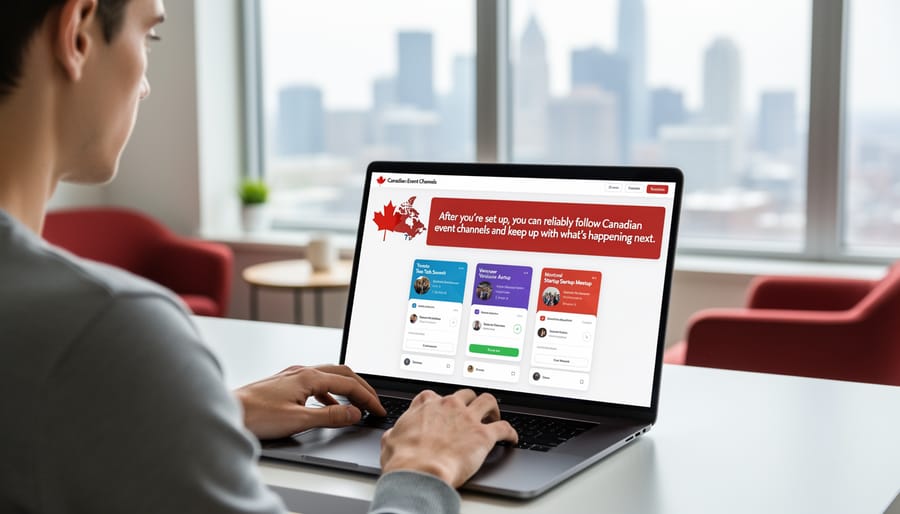
After setting up your account, sign in one more time to confirm everything works. Open YouTube, click the profile icon in the top right corner, and verify your name or profile picture appears. If you’re redirected to the sign-in page or see an error, double-check you’re using the correct email and password.
Next, test your subscription functionality by searching for a Canadian event organizer you’re interested in. Try “Toronto International Film Festival” or “Edmonton Folk Music Festival,” then click the Subscribe button on their channel page. The button should change to “Subscribed,” and you’ll see a bell icon appear beside it. Click the bell and select “All” to receive notifications for every video they upload.
Confirm your notification settings are active by clicking your profile icon, selecting “Settings,” then “Notifications.” Make sure notifications are enabled for subscriptions and uploads. If you don’t see expected channels in your feed after subscribing, refresh the page or check your subscription list under Library.
Common issues include verification emails landing in spam folders, cached browser data causing sign-in problems, or incorrect notification permissions on mobile devices. Clear your browser cache if you experience repeated sign-in errors, and check your phone’s app settings to ensure YouTube has notification permissions enabled.
Now you’re ready to build your event-focused YouTube experience. Start by subscribing to 5-10 Canadian event organizers, tourism boards, or festival channels that match your interests. Create playlists for different event types like “Summer Music Festivals” or “Vancouver Food Events” to organize videos you want to revisit. Engage with event communities by leaving thoughtful comments on videos, which helps YouTube recommend similar content and connects you with other event enthusiasts across Canada.
Making the Most of Your New YouTube Account for Events
Your YouTube account becomes a powerful tool when you start following the right channels. Begin by subscribing to official accounts for major Canadian festival organizers, concert venues, and provincial tourism boards. Type event names or venue names directly into YouTube’s search bar, then hit the red Subscribe button on channels that regularly post event content.
Turn on notification bells for channels covering the best Canadian festivals you don’t want to miss. Click the bell icon next to Subscribe, then choose “All” for must-see events or “Personalized” for larger channels. This ensures you catch lineup announcements and ticket releases the moment they’re posted.
Create playlists to organize event videos by type: one for music festivals, another for food events, a third for local attractions in your city. When you spot an interesting event video, click the three dots below it and select “Save to playlist.” This makes it easy to find events faster when you’re planning your calendar.
Engage with event communities by leaving thoughtful comments on videos. Ask about parking, best viewing spots, or family-friendly aspects. Many organizers respond directly, and fellow attendees often share valuable tips.
Pair your YouTube subscriptions with platforms offering free event listings for complete coverage. YouTube delivers the visual preview and behind-the-scenes content, while dedicated event sites give you dates, ticket links, and comprehensive schedules across your region.
Common Questions About YouTube Accounts
Can I use a non-Gmail email address?
Yes, you can create a YouTube account with any email provider like Outlook, Yahoo, or your internet service provider. You’ll select “Use my current email address instead” during signup rather than creating a new Gmail account.
Is creating a YouTube account really free?
Absolutely. Basic YouTube accounts cost nothing to create or maintain, with no hidden fees. You can subscribe to channels, save videos, create playlists, and comment without paying anything.
Can I change my username later if I don’t like it?
You can edit your display name anytime through your account settings. However, your YouTube handle (the @username that appears in URLs) can only be changed once every 14 days, so choose thoughtfully.
What if I forget my password?
Click “Forgot password?” on the sign-in page, then follow the recovery steps using your email or phone number. Google will send you a verification code to reset your password securely.
Managing your YouTube privacy is straightforward once you’re signed in. Visit your account settings to control who sees your subscriptions, saved playlists, and liked videos. Most event enthusiasts keep subscriptions public to connect with others who follow the same Canadian festivals and venues, but you can adjust these settings based on your comfort level.
You don’t need separate accounts for different interests. YouTube’s algorithm learns from your viewing habits and subscriptions, so following both music festivals and food events on one account works perfectly fine. If you’re struggling to find specific event content or need to fix no results when searching, try adjusting your search terms or exploring related channels YouTube recommends based on your subscriptions.